
How to Stop Your Toddler From Exiting an iPad or iPhone App Accidentally
Stop toddlers from exiting apps on iPad or iPhone with Guided Access. Learn how to lock your device to one app for calmer, safer toddler play.
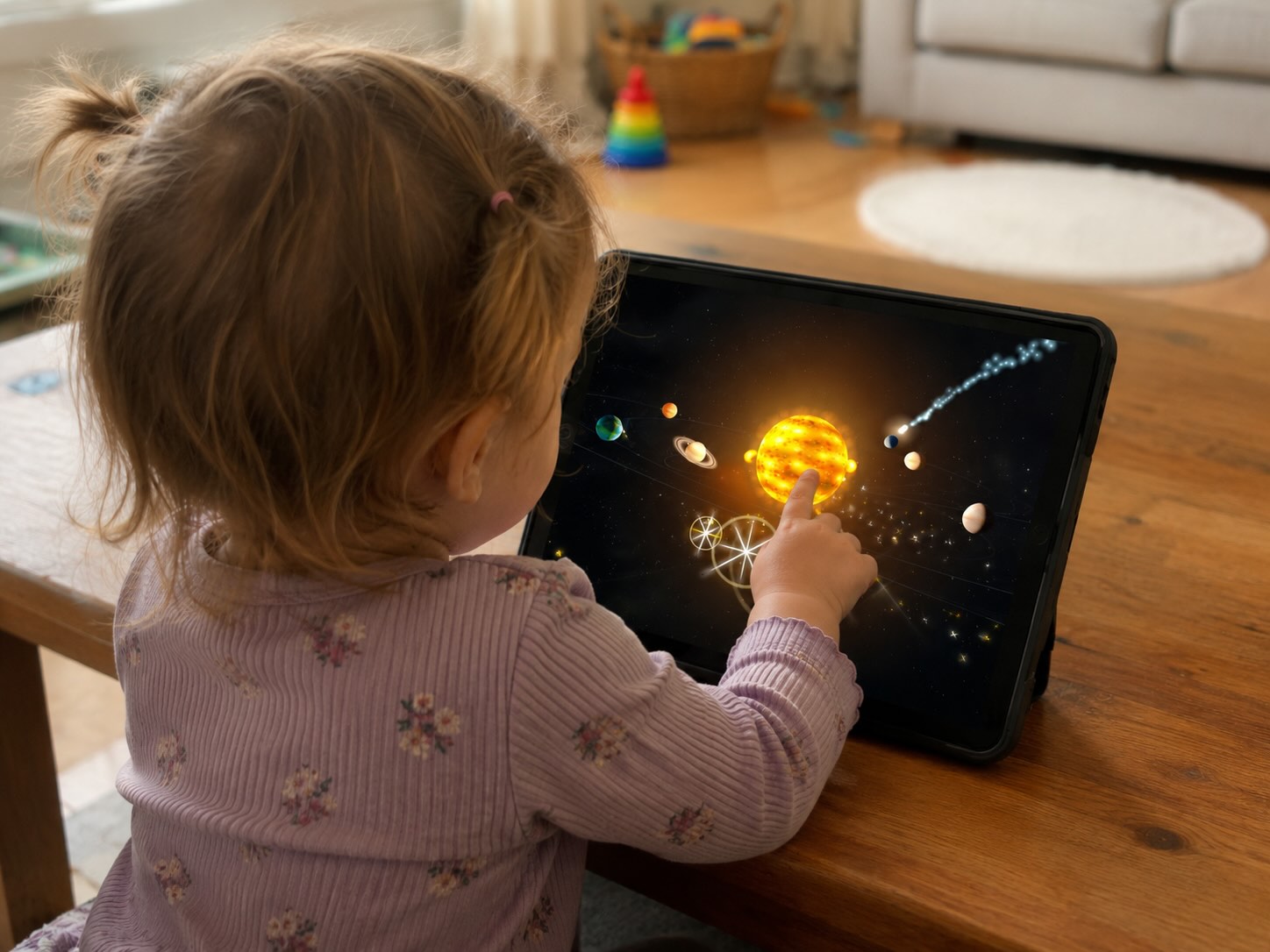
If your toddler keeps exiting apps on your iPad or iPhone, opening random menus, swiping to other screens, or pressing buttons they definitely were not supposed to press, you are not alone.
Toddlers are professional chaos testers. They tap everything, swipe everywhere, and somehow find hidden settings faster than most adults.
The good news is that Apple has a built-in feature that can help: Guided Access. It lets you lock your iPad or iPhone to one app, so your toddler can keep playing without accidentally leaving the game.
The Fix: Use Guided Access
Guided Access is an iPhone and iPad feature that limits the device to a single app. Once it is turned on, your child can use the app you selected, but they cannot easily leave it without your passcode, Face ID, or Touch ID.
This is especially useful for toddlers because young children often tap, swipe, and press buttons randomly. They might accidentally close the game, open another app, change the volume, open Control Center, or end up somewhere completely unrelated.
Guided Access helps turn the iPad or iPhone into a more contained play space.
How to Turn On Guided Access
To set up Guided Access:
- Open Settings
- Tap Accessibility
- Tap Guided Access
- Turn Guided Access on
- Tap Passcode Settings
- Set a Guided Access Passcode
- Optionally enable Face ID or Touch ID
You only need to do this setup once. After that, you can start Guided Access whenever your child uses a toddler app.
How to Start Guided Access in an App
Once Guided Access is enabled, open the app you want your toddler to use.
Then:
- Open the app
- Triple-click the side button, top button, or home button, depending on your device
- Choose Guided Access
- Adjust any options if needed
- Tap Start
Your child is now locked inside that app until you end the Guided Access session.
Use Guided Access With a Simple Toddler Game
Guided Access works best with apps that are already simple and child-friendly. For example, Touch and Sparkle: Planets is designed for toddlers to use without menus, reading, or complicated gestures.
Once Guided Access is turned on, your child can stay inside the game and simply tap to explore planets, stars, comets, sparkles, and playful sounds.
That combination — a simple app plus Guided Access — can make iPad or iPhone play much easier to manage.
How to End Guided Access
To end a Guided Access session:
- Triple-click the side button, top button, or home button
- Enter your Guided Access passcode
- Tap End
If you enabled Face ID or Touch ID, you may be able to end the session more quickly.
It is worth practicing this once before handing the device to your toddler. Nothing adds drama to a quiet moment like realizing you have locked yourself into a children’s app and forgotten the escape route.
Tips for Toddler iPad and iPhone Play
Guided Access is useful, but it works best as part of a sensible setup.
Before giving your toddler the device:
- Choose an ad-free app
- Avoid apps with in-app purchases
- Turn the volume down
- Check that the app works offline if traveling
- Start Guided Access before handing over the device
- Keep sessions short and supervised
For very young children, the best apps are usually simple cause-and-effect experiences. They should not require reading, precise tapping, or complicated instructions.
Final Thoughts
If your toddler keeps exiting apps on your iPad or iPhone, Guided Access is usually the easiest fix. It helps keep your child inside one app, reduces accidental exits, and gives parents a little more control.
For best results, pair Guided Access with a calm, simple, ad-free toddler game. Your child gets a focused play space, and you get fewer surprise app escapes.
That is a pretty good trade.